

How to Use Microsoft Entra ID Authentication in Azure PostgreSQL
June 18, 2026
During the livestream of my session at the POSETTE: An Event for Postgres 2026 conference, I received the following question on the hallway track via Discord:
I have one question : I added an Entra group as PostgreSQL Entra administrator, created/mapped the PostgreSQL role for that group, and granted permissions to that group. I am a member of the Entra group, but I still cannot log in with my own Entra user. Does Azure PostgreSQL allow group members to authenticate through the group role, or must each user also be individually created/mapped as a PostgreSQL role?
answered with a quick “yes” and promised the attendee that I would walk through the steps if they reached out to me later, since I was trying to address questions from other attendees as well. I figured others might have the same question, so I’m walking through the steps here in a blog post.
Pre-Requisite
Setting up Microsoft Entra Administrators
During server provisioning:
- In the Azure portal, select either PostgreSQL and Microsoft Entra authentication or Microsoft Entra authentication only as the authentication method.
- On the Set admin tab, select a valid Microsoft Entra user, group, service principal, or managed identity from your tenant.
Note: You can add only one Microsoft Entra admin during server provisioning. Multiple admins can be added after the server is created.
After server creation:
- Open the Azure Database for PostgreSQL flexible server in the portal.
- Under Security, select Authentication and choose your preferred auth method.
- Select Add Microsoft Entra Admins and choose a user, group, service principal, or managed identity.
- Select Save.
Important: When you set the administrator, a new user is added to the server with full administrator permissions.
How do I log in with my own Entra Identity
Since I use the Visual Studio Code extension, I’ve populated the “Connect to PostgreSQL Server” dialog with dummy data below. Other tools should have similar fields. The key point is this:
You must specify the role (login) name — which is the Microsoft Entra group your account is a member of — in the “Entra Username” field.
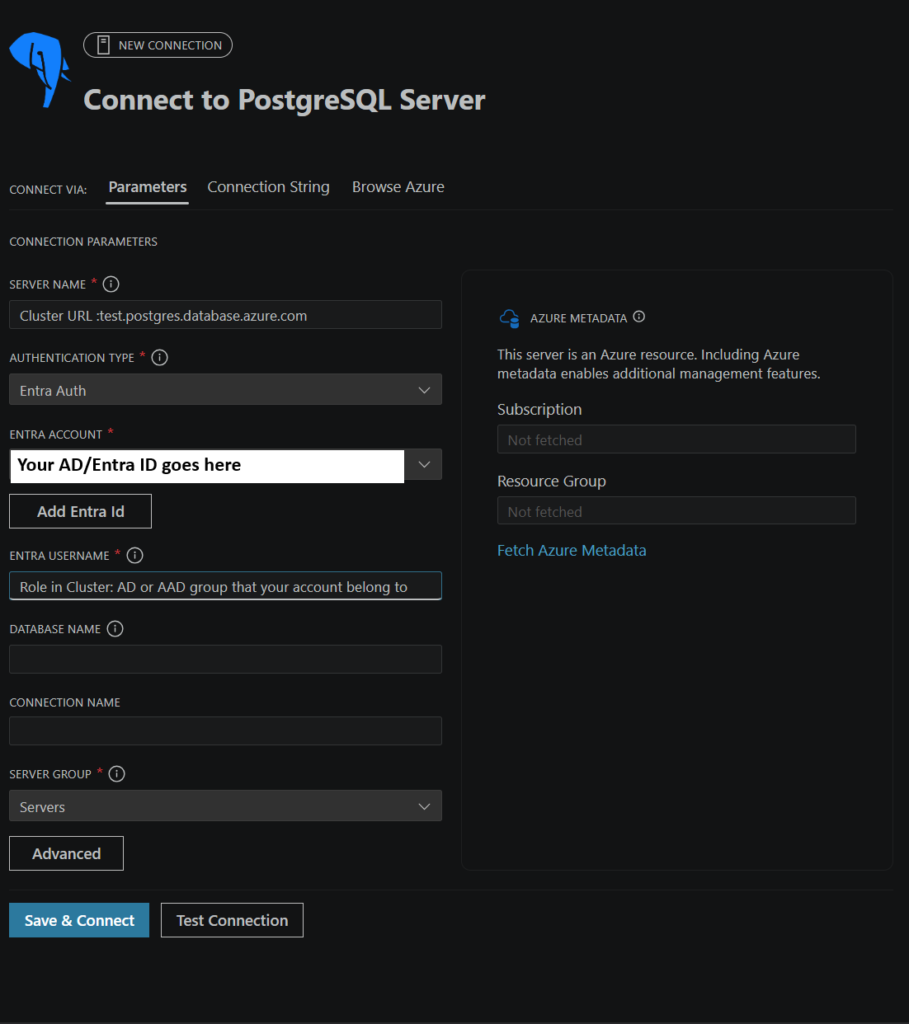
If you’re using a different tool to connect and run into issues, drop a comment below and I’ll take a look.









1 reply on “How to Use Microsoft Entra ID Authentication in Azure PostgreSQL”
[…] Taiob Ali wants to use Entra for authentication: […]